
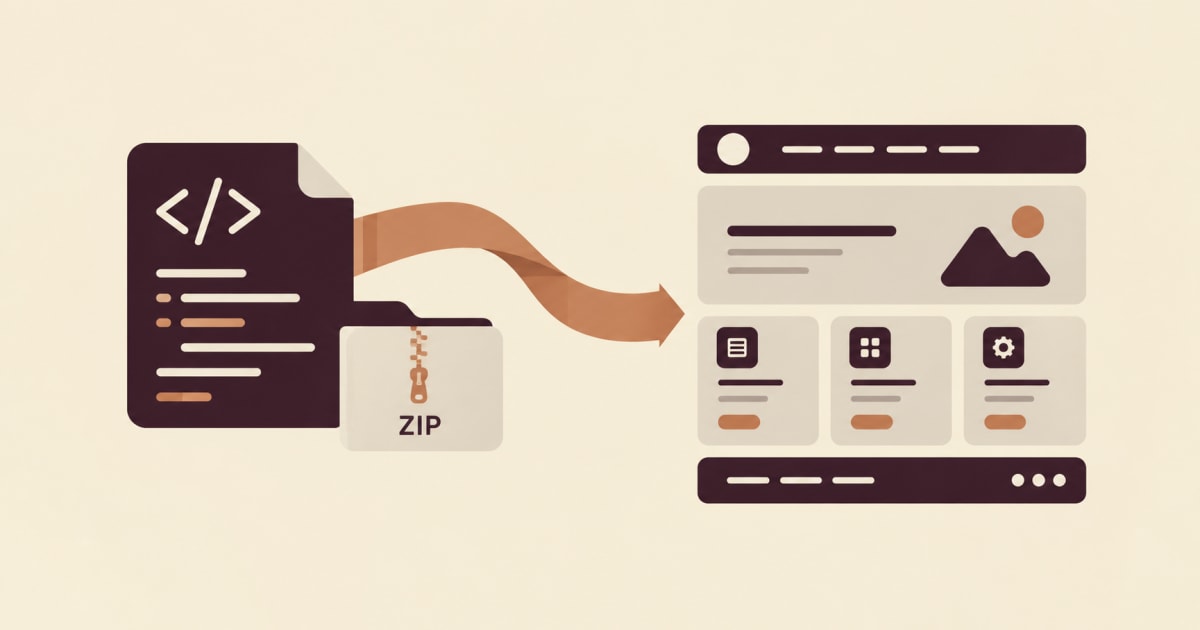
Quick answer: HTML to WordPress conversion means turning each page of a static site into native WordPress content instead of pasting code into a custom theme. Zip your pages, CSS and images, convert them to Gutenberg or Elementor blocks, then import them or publish them as drafts. This guide walks through each step and lists what you still have to do by hand.
Introduction
Static HTML sites are everywhere: a hand-coded landing page, a template bought years ago, a prototype exported from a design tool, or a page generated by an AI site builder. Sooner or later someone asks for the same site in WordPress so that clients can edit it themselves. That is when the html to wordpress question appears.
The slow answer is to rebuild every page in the editor. The faster answer is to convert the files. This article explains how html to wordpress conversion works with Tapeto, a converter that parses your HTML and CSS and outputs native blocks. It also covers the limits, because an honest html to wordpress guide has to say what will not carry over.
How HTML to WordPress Conversion Works
From DOM to blocks
Tapeto’s parser walks the DOM of each page and turns it into an intermediate representation (IR), a builder-independent description of layout, text, images and styles. A generator then converts the IR into blocks. Because the IR is shared, one html to wordpress project can be converted for more than one builder without uploading the files again.
What the parser reads
- Standard attributes such as
src,alt,hrefand heading levels. - Linked and inline CSS, including
@mediarules, so breakpoints survive. - Headings, paragraphs and images as leaf nodes, never as containers.
Builders available for HTML to WordPress today
- Gutenberg: every plan, including Free.
- Elementor: from the Starter plan onward.
- Other builders are marked Coming soon, so they should not be part of your plan yet.
People searching for html to gutenberg or html to elementor are therefore covered by these two options.
Step 1: Prepare Your Files for HTML to WordPress
Preparation decides the quality of the result more than any setting does.
Organize the folder
Put everything in one folder: one .html file per page, your .css files and an images folder. Each HTML file becomes one WordPress page.
Use relative paths
Write links like about.html and images/logo.png. Links between pages are converted into WordPress links, which is what makes an entire site work after the html to wordpress conversion.
Keep styles in CSS files
Prefer .css files to inline style attributes. The parser reads stylesheets more reliably than scattered inline rules.
Use semantic HTML
h1 to h6, p, img and a map directly to IR node types. A pile of generic div elements loses structure, and the Fidelity Score drops with it.
Zip it
Select the folder’s contents and compress them into a .zip of up to 20 MB. A single .html file also works.
What to expect from your files
- Content built by JavaScript after load, such as some menus and sliders, may not be detected.
- Images upload to WordPress as jpg, png, gif or webp, up to 6 MB each.
- Loose SVG files are not uploaded, but SVG written inside the HTML is kept.
Step 2: Create the HTML to WordPress Project
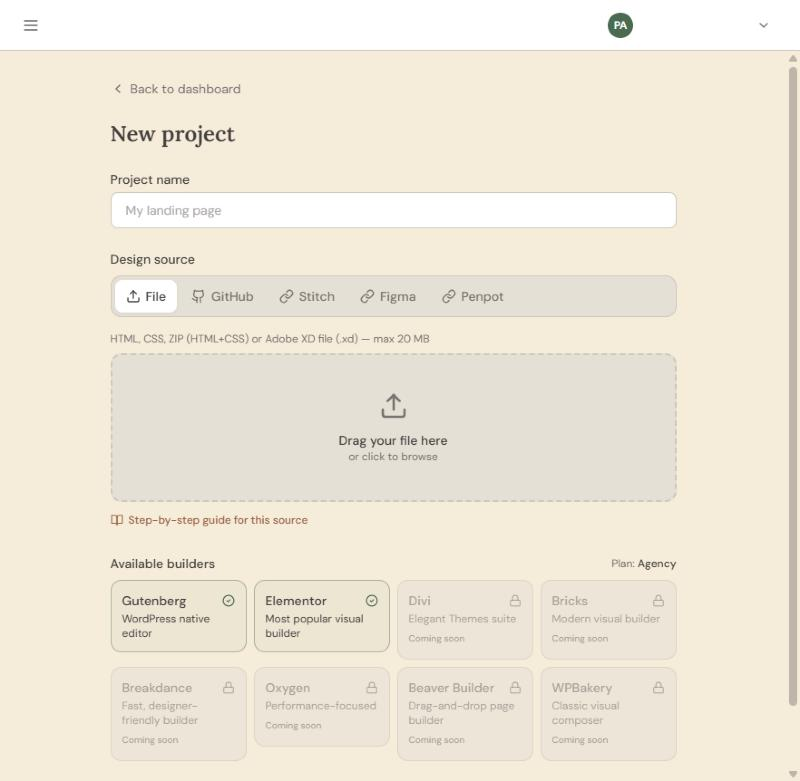
- Click New project and give it a name.
- Stay on the File tab and drop the
.zipinto the upload area. - Click Create project and wait for the status to read processed.
If it ends in error, the message explains what to fix. You can also import a GitHub repository from the GitHub tab, which follows the same flow, or use the URL cloner to fetch a public page and its external stylesheets.
Step 3: Convert HTML to WordPress Blocks
Open the project, choose a builder under New conversion and click Convert. Every page in the project is converted, and if one fails the others still complete. Each html to wordpress conversion targets a single builder, so run two conversions if you need both Gutenberg and Elementor.
Check the Fidelity Score and the result tabs
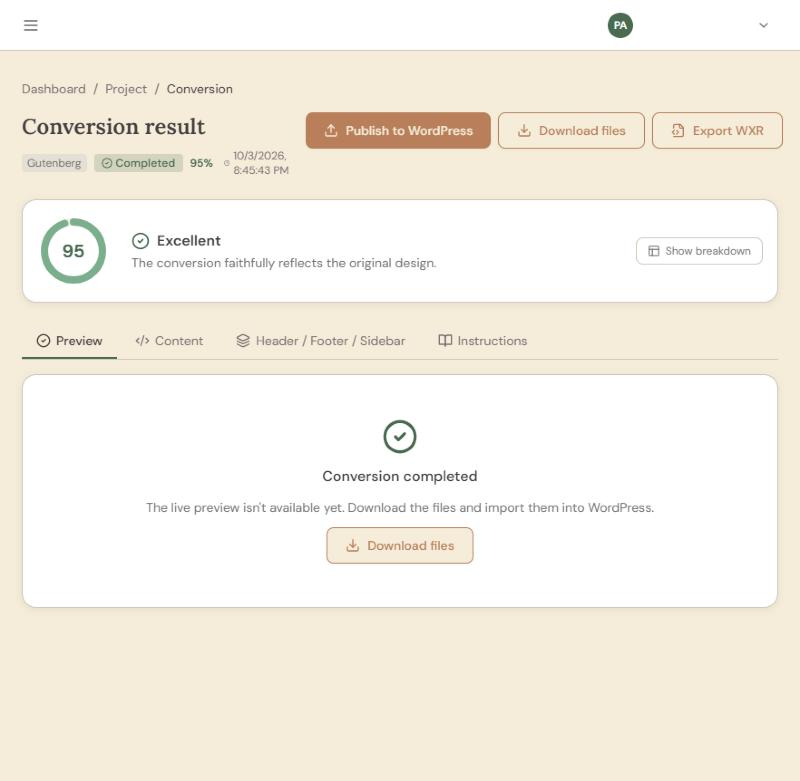
In any HTML to WordPress project, the Fidelity Score estimates, from 0 to 100, how closely the output matches your original in spacing, typography, image placement and structure. Above about 85, little manual work is usually needed. It is an estimate, not a pixel-perfect promise.
Step 4: Bring the HTML to WordPress Result Into Your Site
Option A: copy and paste (Free plan)
- In the Content tab, choose Download files or Copy.
- In WordPress, add a new page, open the three-dot menu, choose Code Editor and paste.
- Paste header and footer parts into their template parts under Appearance → Editor.
- Copy your CSS into Appearance → Customize → Additional CSS.
- Upload images to the Media Library and check each page.
Option B: import a WXR file (paid plans)
Click Export WXR, then in WordPress go to Tools → Import → WordPress, upload the file and run the import. Pages, menus, header and footer arrive together, and no plugin is needed. On Agency and Studio plans the WXR can also include custom post types and loops.
Option C: publish directly (paid plans)
Install the Tapeto plugin, add the site under WP connections, and publish. This html to wordpress route uploads images, creates each page as a draft, rewrites links between pages, adds your CSS and loads the Google Fonts you used.
Prepare the destination site for HTML to WordPress
- HTTPS enabled.
- Permalinks set to Post name.
- A block theme such as Twenty Twenty-Five for Gutenberg output.
- Elementor active if you convert for Elementor. The free version is enough, and the header and footer are placed inside each page.
What Does Not Convert in HTML to WordPress
- Forms look the same but do not submit. Connect a forms plugin and replace the block.
- The mobile menu (hamburger) and JavaScript animations are not carried over.
- Publishing again creates new pages, so delete older drafts first.
- JavaScript-rendered sites, where a framework builds the content, may convert worse.
Tips to Raise Your HTML to WordPress Score
- Keep CSS in stylesheets.
- Use semantic tags.
- Avoid depending on client-side rendering.
- Check image paths, because broken paths show up as missing images.
What Building an HTML to WordPress Converter Taught Us
This walkthrough comes from the team that builds Tapeto’s ZIP and HTML importer. We ran the steps ourselves with real project files, and the screenshots come from the app, so what you see is what the product does today, limits included.
Most problems in an html to wordpress conversion come from the same few places: relative paths that point to files you did not upload, styles written inline instead of in a stylesheet, markup made only of generic containers, and content that appears only after JavaScript runs. Those are the patterns the converter’s rules are built around, which is why the checklist in this guide is short and concrete.
For anything beyond our own work, the primary sources are public. Compare our claims with the WordPress Block Editor Handbook, the WordPress importer documentation and Tapeto’s documentation.
Tapeto is our product, and we say so plainly. Treat the Fidelity Score as an estimate of how much review to expect, not as a guarantee. Pushes to your site are signed and pages are created as drafts, so nothing goes live until you have looked at it.
Frequently Asked Questions About HTML to WordPress
1. What is the easiest way to convert HTML to WordPress?
For HTML to WordPress, zip your pages, CSS and images, upload the file to a converter such as Tapeto, choose Gutenberg or Elementor, and import or publish the result.
2. Does HTML to WordPress conversion keep my CSS?
Yes. Linked and inline CSS is read, including media queries, and your CSS is added to Additional CSS when you publish or copy it in by hand.
3. Can HTML to WordPress handle a whole multi-page site?
Yes. Each HTML file becomes a page and links between pages are rewritten, which makes the ZIP route the most complete one.
4. Is HTML to WordPress conversion free?
The Free plan allows one project per month with ZIP or HTML as the source and Gutenberg as the output, applied by copy and paste.
5. Do I need a plugin for HTML to WordPress?
Only for direct publishing. A WXR import or a manual paste needs no plugin on the destination site.
6. Will my forms work after converting HTML to WordPress?
No. They look the same but do not submit, so connect a forms plugin and swap the block.
7. What does HTML to WordPress do with JavaScript, sliders and menus?
Content created by scripts after load may not be detected, and the mobile menu and JavaScript animations are not transferred.
8. Can I use HTML to WordPress conversion for Elementor?
Yes, from the Starter plan. Elementor must be active on the destination site, and the free version works.
9. How big can files be for HTML to WordPress?
The ZIP can be up to 20 MB, and each image uploaded to WordPress up to 6 MB.
10. Can I clone a website with HTML to WordPress tools?
You can point the URL cloner at a public page. It downloads the HTML and external stylesheets and sends them through the same pipeline, and you should only clone sites you own or have permission to use.
Conclusion
HTML to WordPress conversion saves the repetitive part of the job: structure, styles and links. Clean files, relative paths and semantic markup give the best score, and drafts let you review before anything is live.
Ready to test it? Zip a small site, run your first html to wordpress conversion for free and see what score you get.